jazur.eu
The elements of the UI
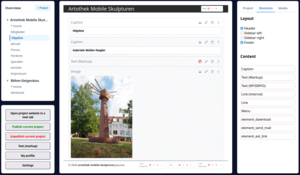
Overview (top left)
The overview is the navigation bar for all your projects and their associated pages. Here you can:
- Create projects
- Rename projects
- Delete projects
- Add pages to projects
- Rename pages
- Delete pages
Your project URL will then be: https://project.jazur.eu
Actions (bottom left)
In the Actions section, you can:
- Open the project currently selected in the navigation tree. It will then open using the exact URL that you can also promote.
- Publish your latest changes. When you make changes to a project, they will only be publicly visible after you publish them. Before that, only you can see the changes!
- If you want to completely remove your project from the internet, use the "Unpublish current project" action. This will completely delete all publicly accessible data, and your project will no longer be reachable via the usual URL. However, your project still exists for you and can be republished.
- With the "Text formatting" action, you can view the syntax of the text manipulation codes.
- Under "My Profile," you can view the data that jazur.eu has stored about you. Here you can, for example, change your password.
- Under "Settings," you will find further helpful functions and information.
Caution: Even in a depublished project, its media URLs are still accessible! If you want to prevent this as well, the relevant media files must be deleted from the archive.
Page Designer (center)
The components of the page selected in the navigation tree are displayed in the middle section. The selected page can be customized here.
Project - Elements - Media (right)
Tab "Project"
General
The metadata of the currently selected project is displayed here. You can change your project's URL (actually its subdomain) here. However, you should only do this once at the beginning of your project, as this will change your project's URL and you will lose the previous URL! Visitors to your project will then be directed to a dead end. You can also specify which project page should be the "homepage" and whether a page is password-protected.
Project Styles
Every project has a configurable basic layout. It can consist of the following elements:
- Base font
- Header
- Left sidebar
- Content
- Right sidebar
- Footer
You can configure these basic elements using the "Project Styles."
Tab "Elements"
Layout
This panel lets you define the basic structure of your project:
- Header
- Left Sidebar
- Right Sidebar
- Footer
Content
This panel also lists the basic page layout elements, which can be dragged and dropped onto the current page. A new element is always appended to the end of the page and can then be moved vertically from there (again, via drag and drop). Each page element (when dragged into the middle section) has three icons in the upper right corner:
- Properties
- Delete
- Drag and Drop
Tab "Media"
The "Media Archive" allows you to manage all files used in your projects. Files uploaded here are optimized by the system. For images, for example, many smaller formats are derived so that optimal image sizes can always be used on the designed pages, thus preventing any degradation of page performance. For videos, two smaller formats are derived from the original: MP4 and WebM. The optimized video formats take a few minutes to become available. If someone accesses the video before then, the original format will be displayed. Media, like page elements, is dragged and dropped onto the page.
Designing High-Performance Pages
Text (WYSIWYG):
Offers intuitive design options! Images you upload here will be optimized, but they will not be available in the media archive for all other projects!
Text (Markup):
This editor uses only optimized image assets from the media library.
Media Library:
When you use images or videos directly from the media library as design elements, only the optimally sized versions are delivered. The media archive accepts your "large files" upon upload and automatically generates smaller versions—for both images and videos.